
Appearance
Tag Verification Guide
This guide explains how to verify that the Click2Buy tag is correctly implemented on your website by placing a test order.
Verification Process
To ensure the tag is triggering correctly, follow these steps:
- Prepare your environment: Open Google Chrome and ensure you accept cookies on the website.
- Navigate to the Brand's Website: Go to the website of a brand that displays your products via Click2Buy.
- Select a Product: Find a product that is currently in stock.
- Use the Click2Buy Widget:
- Open the "Where to Buy" widget on the product page.
- Select your store/retailer from the list.
- You should be redirected to your own website.
- Place a Test Order: Proceed to purchase the product as you normally would.
- Check the Confirmation Page: Once you reach the order confirmation page, the Click2Buy tag should trigger.
Verifying the Tag Trigger
If the test order is successful, our system should record it. You can contact your Retail Account Manager at Click2Buy to confirm if the order was spotted in our back office.
If you want to manually verify the trigger yourself while on the confirmation page:
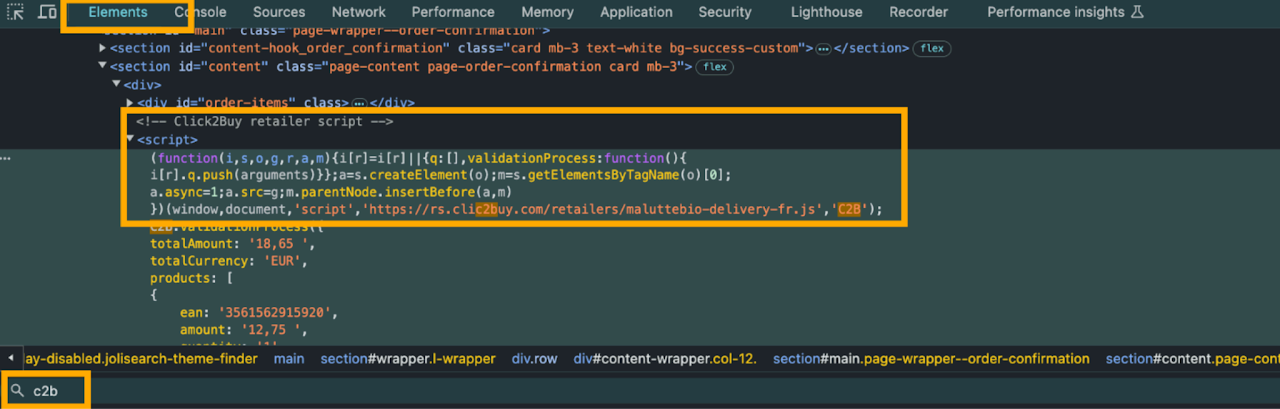
1. Check the Elements
Right-click on the page and select Inspect.
Go to the Elements tab.
Press
Ctrl+F(orCmd+Fon Mac) and search for"c2b".You should see our script tag in the HTML.
2. Check the Console
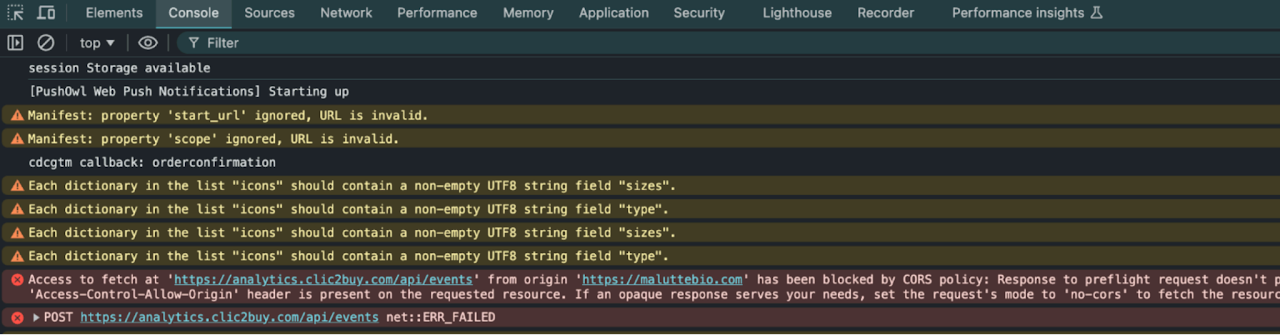
Go to the Console tab in the developer tools.
Check for any errors related to "Click2buy". If the tag is failing, an error message often appears here.
3. Check the Sources
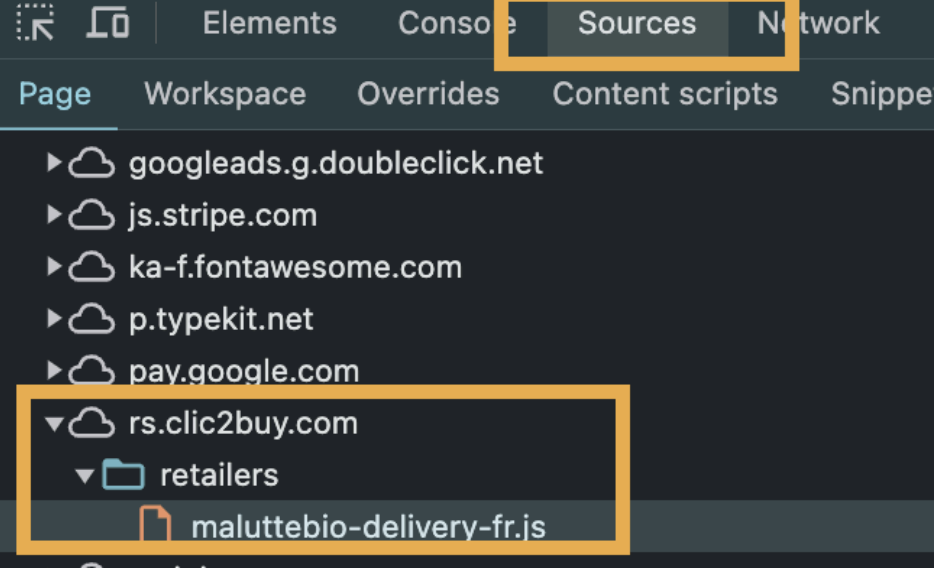
Go to the Sources tab.
Look for the Click2Buy resources. You should be able to see a file containing your Retailer ID.
4. Check Network Activity
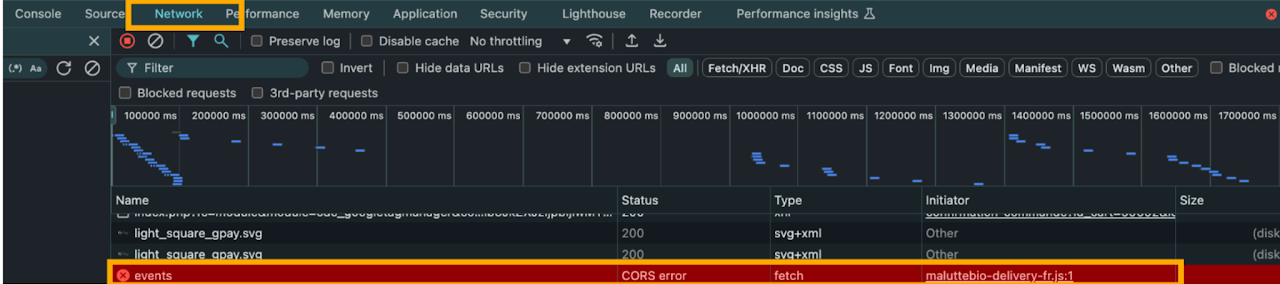
Go to the Network tab.
Refresh the page if necessary (be careful not to lose the confirmation state if it's a one-time page).
Look for a network request related to Click2Buy.
Ensure it has a Status 200 (green), indicating a successful loaded resource.
Need Help?
If the tag does not seem to trigger or if you see errors, please schedule a call with your Retail Account Manager at Click2Buy to troubleshoot the implementation.